How to Print or Reprint Nadakacheri Certificates Online (2026)
After your Nadakacheri certificate is successfully issued, you can conveniently download or print it online in just a few steps. Simply use your ACK Number or RD Number to access the certificate without making another visit to a government office.
This guide explains how to print or reprint your Nadakacheri certificate, where to find the required details, and what to do if you face any issues during the process.
Who Can Use the Print and Reprint Facility?
The Nadakacheri print and reprint service is available to applicants who meet certain eligibility conditions. Check the table below to see whether you can download, print, or obtain another copy of your approved certificate.
| Eligibility | Requirement |
|---|---|
| Approved Application | Your certificate application has already been approved. |
| ACK/RD Number Available | You have your ACK Number or RD Number. |
| Duplicate Copy Required | You need another copy of a previously issued certificate. |
| Lost or Damaged Certificate | Your original certificate has been lost, misplaced, or damaged. |
Certificates That Can Be Printed Online
The following certificates are commonly available for printing:
- Caste Certificate
- Income Certificate
- Residence Certificate
- Domicile Certificate
- Non-Creamy Layer Certificate
- Minority Certificate
- Agricultural Certificates
- Family Related Certificates
- Other eligible Nadakacheri certificates
Difference Between Print and Reprint
Before proceeding, understand the difference:
Print Certificate
Use this option only if you are downloading or printing the certificate for the first time.
Reprint Certificate
Use this option if the certificate has already been printed before and you need another copy.
How to Print Nadakacheri Certificate Online
Follow these steps carefully.
Step 1: Open the Nadakacheri Portal
Visit the Nadakacheri website and choose the online application section.
After opening the portal, proceed to the login page.
Step 2: Log In Using Mobile Number
Enter your registered mobile number.
- Click on Get OTP.
- Enter the OTP received on your phone.
- Select Login.
After successful login, your dashboard will open.
Step 3: Select Print Certificate
From the Print menu:
- Click Print Certificate.
- Enter your ACK Number or RD Number.
- Click Search.
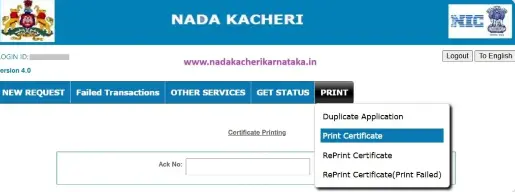
The system will retrieve your certificate details.
Step 4: Verify Certificate Information
Check all displayed details carefully.
Verify:
- Applicant name
- Certificate type
- Application number
- Issue date
If everything is correct, proceed to print.
Step 5: Download and Print
Click the Print button.
Your certificate will be downloaded and can be printed immediately.
Note: If the system displays “Application is not in Print Stage,” it means the certificate has already been printed previously. In that case, use the Reprint option instead.
How to Reprint Nadakacheri Certificate Online
If you already printed the certificate once and need another copy, follow these steps.
Step 1: Login to the Portal
Open the Nadakacheri portal and sign in using:
- Mobile number
- OTP verification
Step 2: Choose Reprint Certificate
Under the Print section:
- Select Reprint Certificate.
- Enter your ACK Number or RD Number.
- Click Search.
The certificate information will appear.
Step 3: Preview the Certificate
Before payment:
- Verify all certificate details.
- Accept the declaration checkbox.
- Click Draft View.
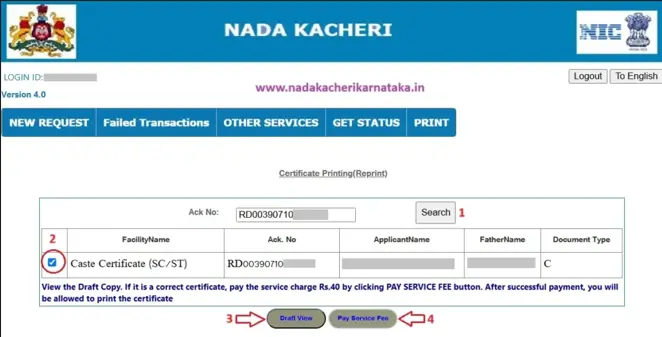
A preview copy of the certificate will be displayed.
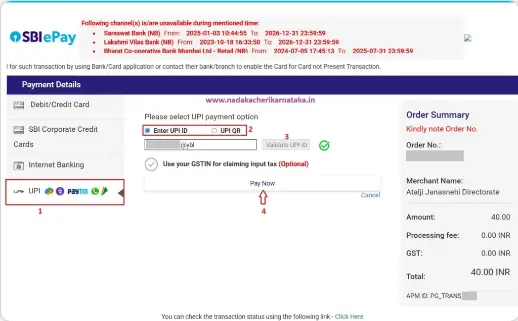
Step 4: Pay the Service Fee
To continue:
- Select Pay Service Fee.
- Accept the terms and conditions.
- Choose SBI e-Pay.
Available payment methods:
UPI QR Code
- Click Pay Now.
- Scan the QR code.
- Complete payment.
UPI ID
- Enter your UPI ID.
- Approve the payment request.
- Enter your UPI PIN.
The reprint fee is ₹40 per request.
Step 5: Print the Certificate
After successful payment:
- The Print option will become active.
- Download the certificate.
- Print or save the PDF for future use.
What to Do If Print Fails?
Sometimes users may face issues after making the payment.
If this happens:
- Open the Print menu.
- Select Reprint Certificate (Print Failed).
- Enter your RD Number.
- Download your certificate again.
This option is available specifically for failed printing cases.
Important Points to Remember
Keep these points in mind:
- Always keep your ACK Number or RD Number safe.
- Use Print only for first-time printing.
- Use Reprint if you need another copy.
- Verify all details before printing.
- Save a PDF copy for future reference.
- Use the Print Failed option if payment is completed but the certificate is not generated.
Benefits of Online Certificate Printing
The online facility offers several advantages:
- No need to visit government offices.
- Faster access to certificates.
- Easy duplicate certificate retrieval.
- Secure online payment system.
- Available from any location.
- Saves time and effort.
Conclusion
The Nadakacheri print and reprint service makes it easy to access your approved certificates anytime you need them. With your ACK Number or RD Number, you can download or print your certificate online in just a few steps. Keep your application details secure for future use, and follow the official process whenever you need another copy of your certificate.
Frequently Asked Questions (FAQs)
Can I print my certificate without an ACK Number?
No. You need either an ACK Number or an RD Number to print your certificate.
Is there a fee for reprinting a certificate?
Yes. The current reprint fee is ₹40.
Can I print my certificate again?
Yes. Use Print for the first copy and Reprint for additional copies.
What if my certificate is not printed after payment?
Use the Reprint Certificate (Print Failed) option and enter your RD Number.
Can I get my certificate offline?
Yes. If online printing is unavailable, you can visit your nearest Nadakacheri or Taluk office for assistance.