Apply for Caste, Income, Residence & Other Certificates on Nadakacheri 5.0
If you need a caste, income, residence, domicile, or another Revenue Department certificate, Nadakacheri 5.0 gives you a way to start the application online. You can fill in your details and provide the documents needed for the service without going through every step at a service centre.
The exact process depends on the certificate you choose, but it may include document uploads, Aadhaar eSign, and online fee payment. After submitting the application, you can also check its progress using your application details. This guide covers the process in simple steps so you know what to expect.
What Is Nadakacheri 5.0?
Nadakacheri 5.0 is an online service system for different Karnataka Revenue Department applications. It lets users enter their details, upload documents, complete Aadhaar eSign, pay applicable fees, and check their application progress online.
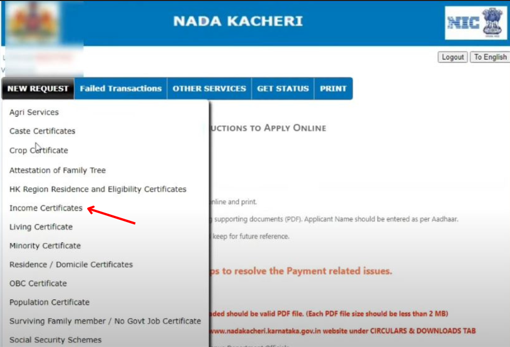
The following certificates and services are available through Nadakacheri 5.0:
| Service | Purpose |
|---|---|
| Income Certificate | Proof of annual income |
| Caste Certificate | Caste verification |
| Domicile Certificate | Proof of Karnataka domicile |
| Residence Certificate | Residential address proof |
| OBC Certificate | OBC category verification |
| Widow Certificate | Welfare and pension schemes |
| Family Tree Certificate | Family relationship details |
| Other Services | Agricultural, land, pension & other Revenue services |
Note: Before applying, make sure you have the required documents and check the applicable fee for the selected service.
How to Apply for Certificates Through Nadakacheri 5.0
Follow these simple steps to submit your application online.
Step 1: Login to the Citizen Portal
Visit the official Nadakacheri 5.0 Public Login page.
Enter your mobile number and verify it using the OTP sent to your phone.
After successful verification, you will be redirected to the Citizen Dashboard.
Note: Registration is not required. Every citizen can log in directly using a valid mobile number.
Step 2: Select the Required Service
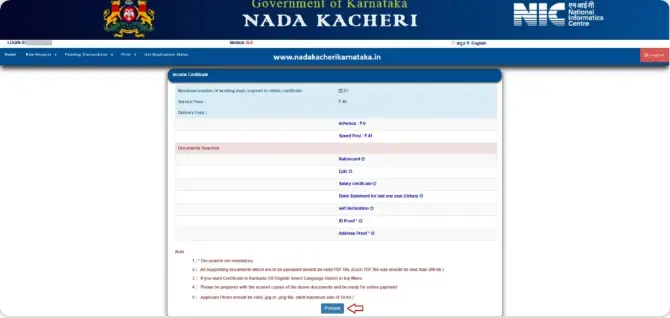
Inside the dashboard, click New Request.
A list of available services will appear.
Choose the certificate or service you wish to apply for.
For example:
- Income Certificate
- Caste Certificate
- Domicile Certificate
- Residence Certificate
The online application form will open automatically.
Step 3: Start Filling the Application Form
After selecting your desired service, follow these steps:
Review the entered details before moving to the next step.
Click the Proceed button to open the application form.
Enter all the required personal details carefully.
Make sure the information matches your Aadhaar and other supporting documents.
Step 4: Complete Identity Verification
The system will ask whether you possess a ration card.
If You Have a Ration Card
- Select Yes
- Enter the ration card number
- Click Proceed
- Choose the applicant’s name from the family members listed.
If You Do Not Have a Ration Card
Select No.
The portal will request Aadhaar authentication.
Enter your Aadhaar number and verify the OTP received on your Aadhaar-linked mobile number.
Once verification is complete, continue to the next step.
Step 5: Enter Personal Information
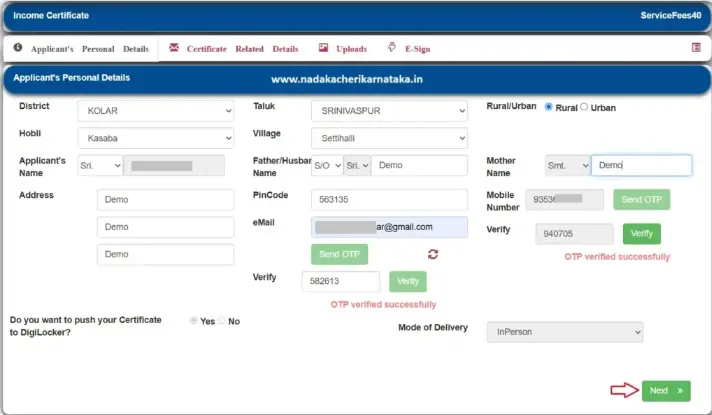
Provide all mandatory applicant details carefully.
These generally include:
- Applicant Name
- Father’s or Husband’s Name
- Residential Address
- PIN Code
- Mobile Number
- Email Address
The portal will send OTPs to both the registered mobile number and email address for verification.
Complete both verifications before moving ahead.
Depending on the certificate selected, some additional information may also be requested
Step 6: Upload Required Documents
Next, upload all supporting documents.
Documents must satisfy the following requirements:
- PDF format only
- Maximum file size: 200 KB per document
- Clear and readable copies
Upload every required document before clicking Submit.
Incomplete documentation may delay application approval.
Step 7: Verify Application and Complete Aadhaar eSign
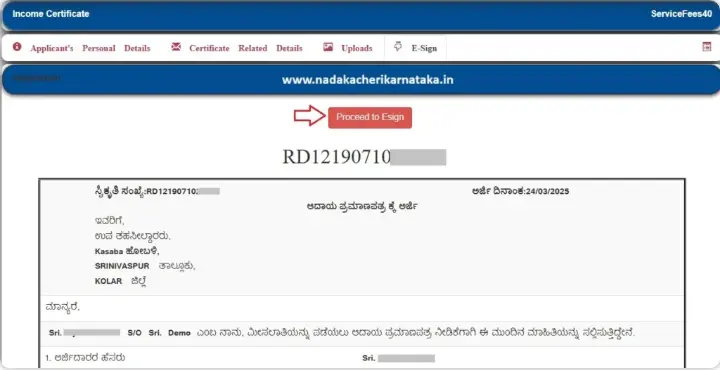
Before final submission, the portal displays a complete preview of the application.
Check every detail carefully.
If any information is incorrect, edit it before proceeding.
Once satisfied, click Proceed for eSign.
To complete Aadhaar eSign:
- Enter your Aadhaar number
- Click Get OTP
- Enter the received OTP
- Finish the digital signature process
The application becomes eligible for processing only after successful eSign.
Step 8: Pay the Service Fee
Some services require payment of a prescribed government fee.
Complete the payment using:
- UPI
- QR Code
- Online Payment Gateway
- Other supported payment options
After successful payment, the application will be submitted automatically.
The portal will generate an acknowledgement receipt containing a unique RD Number.
Download or print this acknowledgement for future reference.
What Happens After You Submit?
Once your application is submitted, it goes through the required verification process. The concerned office checks the information and documents provided with the application before a decision is made.
If everything is in order, the application can be approved and the certificate will become available through the applicable service. Keep your acknowledgement or RD Number safe because you may need it later to check the application or access the certificate.
Things to Check Before Applying
Before submitting your application, take a quick look at the details and documents you have entered. A small mistake in your personal information or an incomplete document can cause problems during verification.
Keep these points in mind:
- Upload documents in the required PDF format.
- Keep each PDF within the 200 KB limit where applicable.
- Make sure your Aadhaar-linked mobile number is active if verification is required.
- Check your personal details before submitting.
- Complete the required Aadhaar eSign and payment.
- Save your acknowledgement after submission.
How to Check Your Application Status
After submitting an application, you can check its progress online instead of submitting another request. Use the Citizen Dashboard and select the application status option.
Enter your application details or RD Number to see the latest update. Depending on the stage of processing, your application may show as pending, under verification, approved, or rejected.
What If eSign or Payment Does Not Complete?
Sometimes an eSign or payment may remain incomplete because of a technical problem or an interrupted internet connection. You usually do not need to start a new application for this.
Log in to the Citizen Dashboard and look under Pending Transactions. If your application is listed there, complete the remaining eSign or payment step and then allow the application to continue through the normal process.
Benefits of Applying Through Nadakacheri 5.0
The online system offers several advantages over the traditional offline process.
- Apply from anywhere without visiting government offices.
- Faster application processing.
- Secure Aadhaar-based verification.
- Online fee payment.
- Digital acknowledgement receipt.
- Easy application tracking.
- Transparent processing system.
- Available 24×7.
Conclusion
Nadakacheri 5.0 lets you handle many certificate applications online, from filling in your details and uploading documents to completing eSign and payment. Once you submit the application, you can also check its progress online. For more information about the available services, you can visit our Nadakacheri Certificates guide.
Frequently Asked Questions
Do I need to create an account first?
No separate registration is generally required. You can start the process using your mobile number and the available OTP verification.
Is a ration card required for every application?
Yes. Where Aadhaar authentication is supported, you may be able to continue without using a ration card.
How large can my PDF documents be?
Each uploaded PDF should generally be kept within the 200 KB limit.
Where can I see my application status?
Use the Get Application Status option and enter your application details or RD Number to check the latest update.
What should I do if the eSign or payment is incomplete?
Open Pending Transactions from the Citizen Dashboard and complete the unfinished step. There is normally no need to submit another application just because a transaction is incomplete.